
How to move a vault to a new phone
How to move private photos and vault apps to a new iPhone or Android phone without losing anything, including built-in hidden albums and locked folders.
New phones copy most things across by themselves. Private photos are the exception. Hidden albums, locked folders and vault apps each move differently, and some do not move at all unless you take a step first.
One rule prevents most lost photos: do not erase the old phone until you have opened everything on the new one. The rest is in order below.
1. Before you start
- Set aside an hour at home, not at the store counter.
- Charge both phones and connect them to the same Wi-Fi.
- Have every passcode, vault path and recovery phrase you will need, written on paper.
- Update apps on the old phone. Export features work best on current versions.
2. Check the built-in hidden places
| Where they are | How they move |
|---|---|
| iPhone Hidden album | Moves with iCloud Photos, a direct transfer, or a computer backup. Check it on the new iPhone before erasing the old one. |
| Google Photos Locked Folder | Moves only if you turned on backup for the Locked Folder. If it is off, the items are on the old phone only. Check Locked Folder settings in Google Photos. |
| Samsung Secure Folder | Has its own backup and restore in Secure Folder settings, and Smart Switch can move it in many cases. Menu names vary. |
Moving between iPhone and Android? Built-in hidden albums do not cross over as hidden albums. Move the photos somewhere private you control, transfer them, then hide or lock them again on the new phone, and delete the in-between copy.
3. Run the phone's own transfer
Quick Start on iPhone, or the copy option during Android setup, moves most apps and settings. Let it finish before you move on. Many vault apps keep their data out of this on purpose, so the next step matters.
4. Move each vault app separately
Read the app's own instructions. In general: export from inside the app, move the file privately, install the app on the new phone, and restore.
For VaultWell, which is coming soon and has no cloud sync, that looks like this:
- On the old phone, open a vault and export its encrypted .vwbackup file.
- Move the file privately: a cable to a computer, a drive, or a direct transfer between your own devices. Avoid sending it through chats.
- On the new phone, install VaultWell and choose restore.
- Pick the file and trace that vault's path. It works between iPhone and Android, in either direction.
- Repeat for each vault.
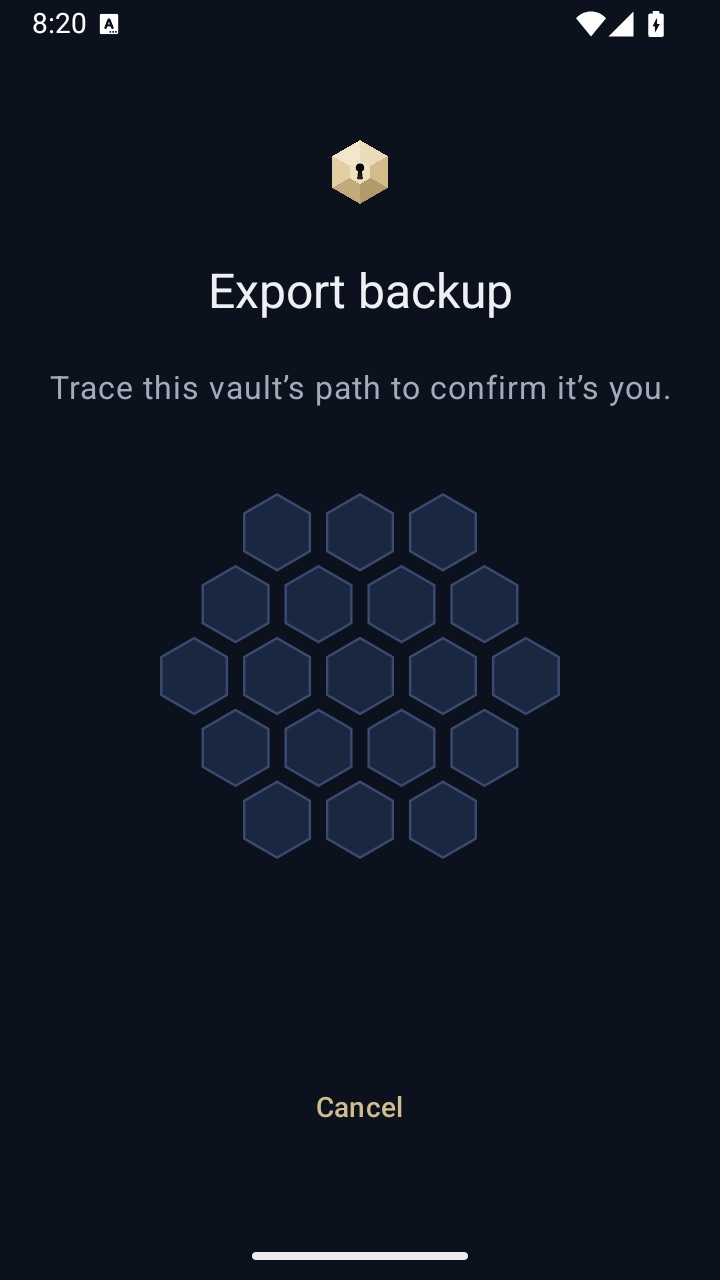
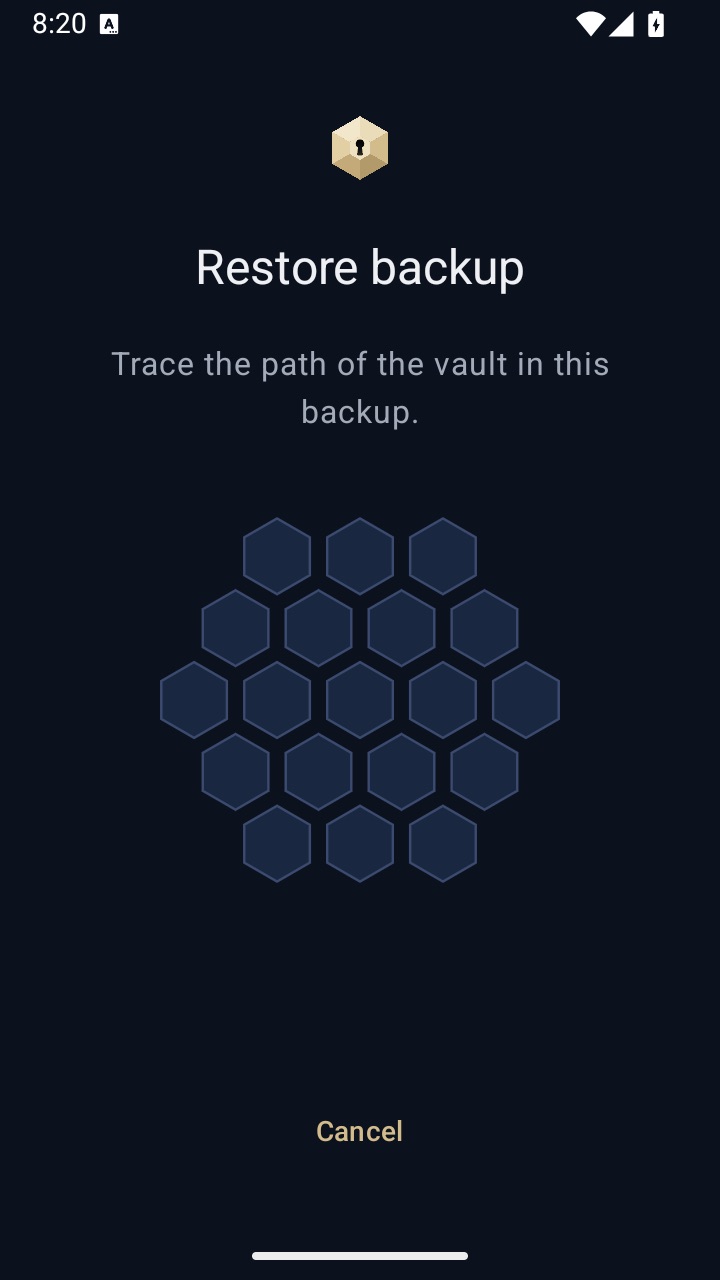
The backup file is encrypted, so it is not readable on the computer or drive where it sits. Keep your recovery phrase to hand in case you have forgotten a path.
5. Check on the new phone
Open a few photos from different years, play a video, and read a note in each vault and hidden album. If anything is missing, the old phone is still your safety net.
6. Then clean up
- Keep the old phone untouched for a few days, just in case.
- Delete export files from places you no longer need them.
- Sign out and erase the old phone. The selling guide covers this step by step.
If you forget a vault's path and its recovery phrase, nobody can restore that backup, including us. If you use a duress vault, remember that opening it permanently erases every other vault on that phone, so trace paths carefully while you move.
Questions
Will my vault come across with a normal phone backup?
Sometimes, but do not count on it. Use the app's own export so you know.
Do I need the old phone to restore a .vwbackup?
No. You need the file and the vault's path. Erase the old phone once you have confirmed the restore worked.