
Feature
Easy from the first tap
One welcome screen, no account, no paywall during setup. From install to your first protected photo in a few steps.
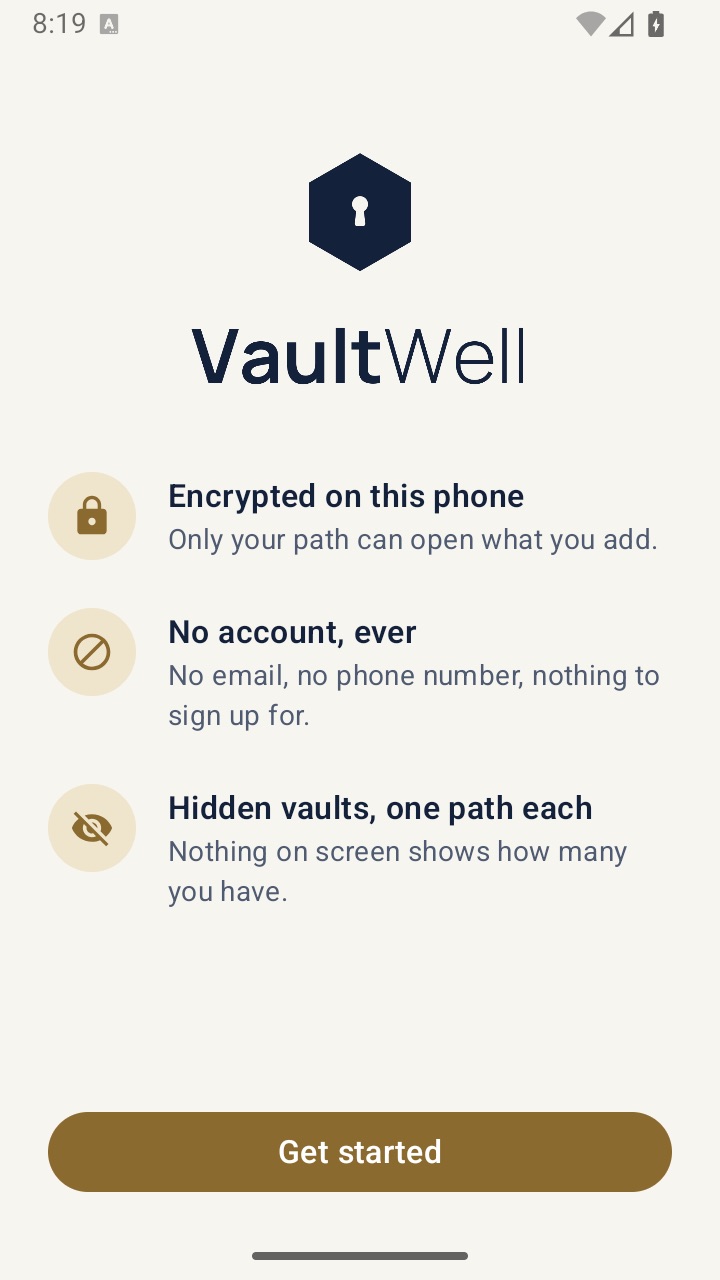
What it is
Privacy tools often ask a lot before they give anything back. VaultWell tries to do the opposite. There is one welcome screen with three short promises and a Get started button. No account to create, no email, no slides to swipe through, and no paywall or countdown offer while you set up.
Getting started
- Open the app and tap Get started.
- Trace a path, guided by the strength meter, and trace it again to confirm.
- Name your vault and set a recovery phrase.
- Tap one of the four quick actions in the empty vault: Photos, Camera, Files or Note.
Small things that add up
- Main actions sit near the bottom of the screen, within reach of your thumb.
- Every action gives a small haptic and visual response, so you know it worked.
- Settings are grouped: This vault, Security, Backup & sharing, and App.
- Short, plain wording, and precise warnings only where they matter.
- Light and dark appearance, larger text support, and screen reader labels on every control.
How it works under the hood
Unlocking runs a deliberately slow key derivation. Instead of a spinner, VaultWell shows a short unlock moment where the keyhole opens, which covers that time calmly.
Honest limits
- Simple doesn't mean careless. You still need to remember your path and keep your phrase safe.
- Some features, like the duress vault, are deliberately harder to turn on, with a clear confirmation.
Questions
Do I need to sign up?
No. There's no account at all.
Is there a paywall during setup?
No. Setup has no paywall and no limited-time offers.
Does it work with large text?
Yes. VaultWell follows Dynamic Type on iPhone and font scaling on Android.