
Feature
Intruder snapshots
After a set number of wrong paths, VaultWell silently takes a front-camera photo. It appears in the next vault you open.
What it is
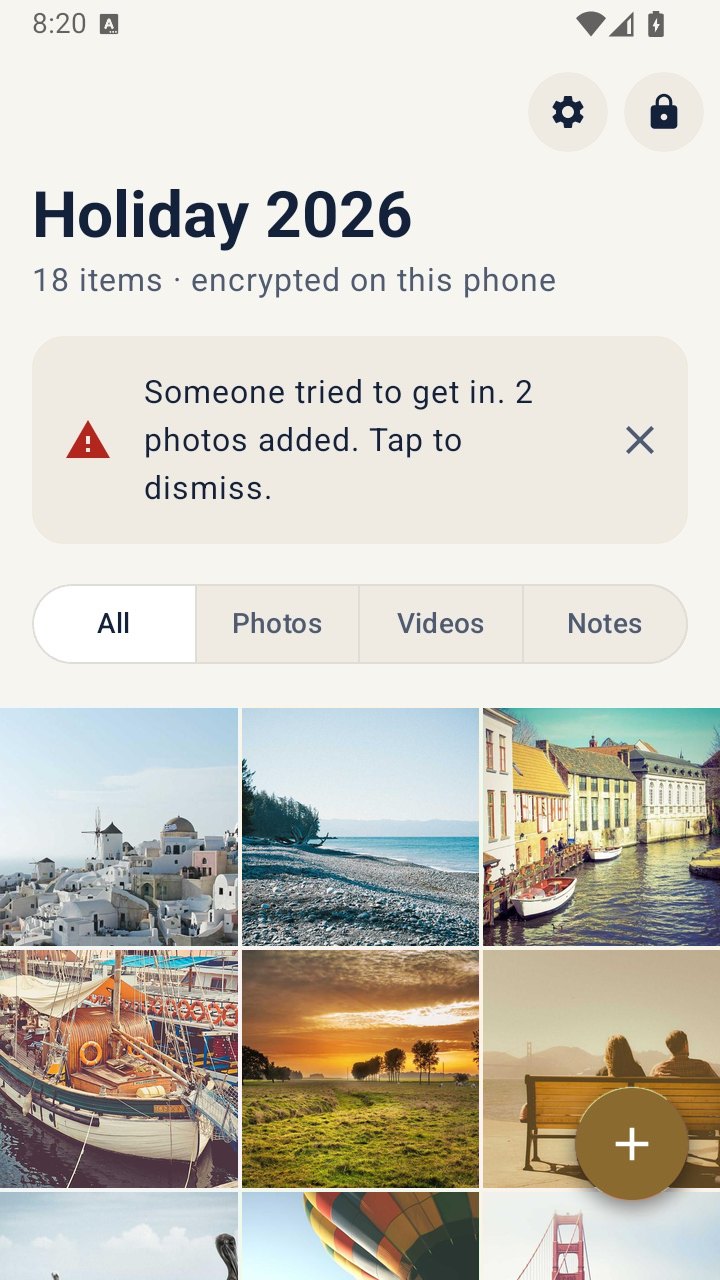
Intruder snapshots tell you if someone has been trying to get in. When turned on, VaultWell takes a quiet photo with the front camera after every few wrong paths. The next time you open a vault, a short banner tells you how many photos were added, and they're saved in that vault like any other item.
How to turn it on
- Open a vault, then go to the app settings.
- Under Security, turn on Intruder snapshots.
- Choose after how many wrong paths a photo is taken.
- Allow camera access when your phone asks.
How it works under the hood
The app counts wrong paths on the lock screen. When the count reaches your number, it takes a front-camera photo without a preview or a sound from the app. Because no vault is open at that moment, the photo is held encrypted until the next vault is unlocked, then moved into it, named with the date and time.
Honest limits
- Your phone may show its own camera-in-use indicator, such as a green dot on iPhone or a camera icon on Android. That's a system feature that apps can't hide, and we wouldn't want to.
- A photo needs light and a face in view. It's a clue, not proof.
- Photos land in whichever vault is opened next, which may be one you use less, or the duress vault.
- Taking photos of other people may be regulated where you live. Use it on your own phone and consider local law.
Questions
Does the person see that a photo was taken?
The app shows nothing. The phone's own camera indicator may briefly appear.
Where do the photos go?
Into the next vault you open, with a banner telling you how many were added.
Do snapshots work if camera permission is off?
No. VaultWell needs camera access for this feature.