
Feature
Auto-lock and face-down lock
VaultWell locks when you leave the app, after a period without a touch, and, if you choose, when you put the phone face down.
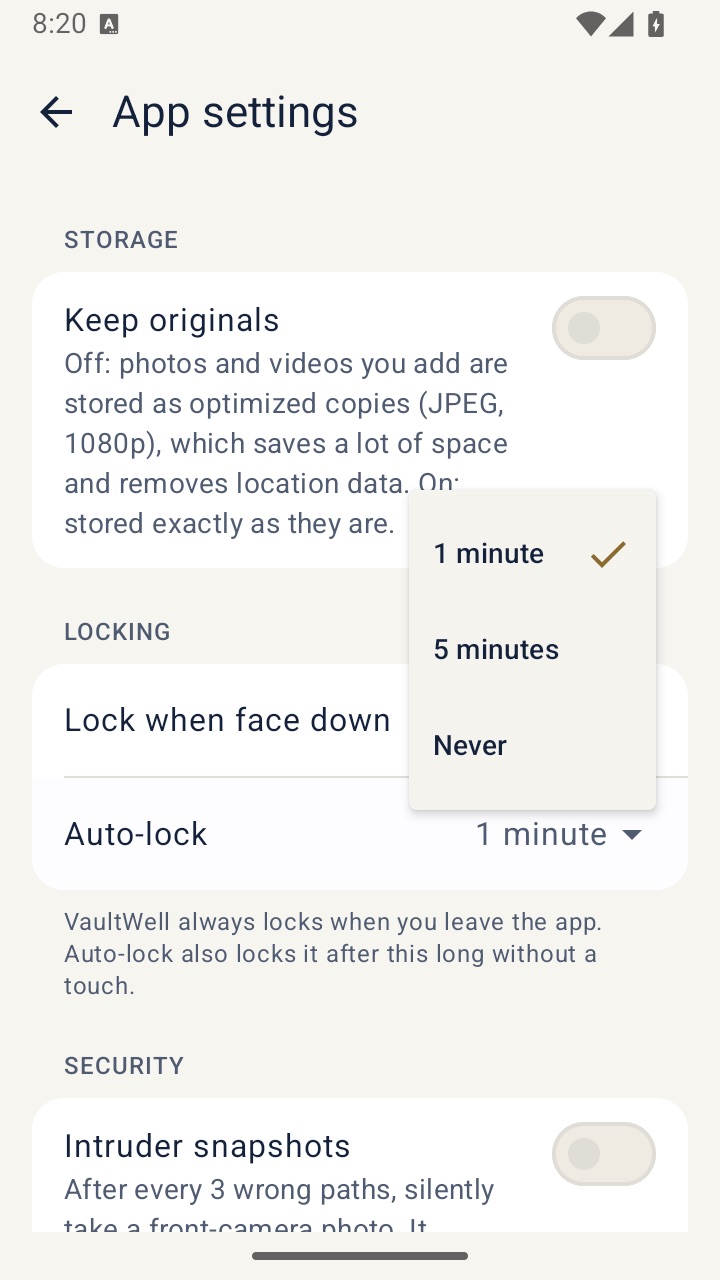
What it is
An open vault is only as private as the moment you walk away. VaultWell always locks as soon as you leave the app. Auto-lock adds a timer, so a vault left open on screen locks itself after a while without a touch. Lock when face down lets you lock instantly by putting the phone on a table, screen down.
How to set it up
- Open a vault, then go to the app settings.
- Under Locking, choose Auto-lock and pick a time.
- Turn on Lock when face down if you'd like that too.
You can also lock by hand with the lock button, or by pulling the vault grid down past the top.
How it works under the hood
When a vault locks, the app drops its keys from memory and returns to the comb. The next open needs the path again, which means the slow key derivation runs again too. Face-down lock uses the phone's motion sensors to notice when the screen is facing the table.
Honest limits
- A very long auto-lock time gives others more time with an open vault. Shorter is safer.
- Face-down detection depends on the phone's sensors and may not trigger on a soft surface or at an angle.
- Locking protects the vault, not the rest of your phone. Use a strong phone passcode as well.
Questions
Does VaultWell lock when I switch apps?
Yes, always. Auto-lock is an extra timer for when you stay in the app.
Does playing a slideshow count as a touch?
Auto-lock is based on time without a touch. Choose a time that suits how you view things.
What does the app switcher show?
Always the dark comb, never your content.