
Feature
Disguise icons
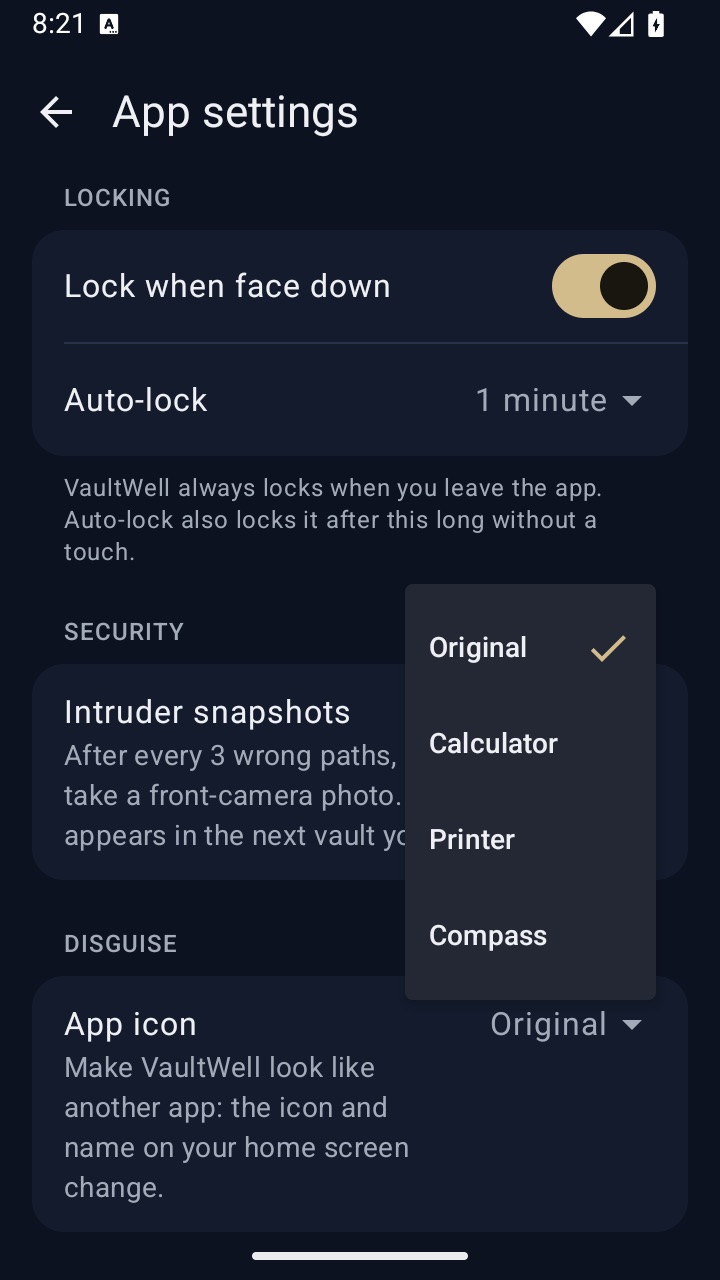
Make VaultWell look like another app on your home screen: Calculator, Printer or Compass.
What it is
A vault app sitting on your home screen can invite questions. Disguise icons let VaultWell look like an ordinary utility. You can choose Calculator, Printer or Compass, or keep the original icon.
On Android the name under the icon changes too: the Printer icon shows as "Print Service". On iPhone, the system shows a short notice when an app changes its icon, so expect a brief message the moment you switch.
How to change the icon
- Open a vault, then go to the app settings.
- Choose App icon.
- Pick Calculator, Printer, Compass or Original.
- On iPhone, dismiss the notice. On Android, the home screen may take a moment to update.
How it works under the hood
On iPhone, VaultWell uses the standard alternate icon feature that iOS provides to apps. On Android, it switches between launcher entries that carry different icons and names. Opening the app with any icon shows the same dark comb lock screen.
Honest limits
- The icon is a disguise, not a working calculator, printer or compass. Tapping it opens the comb.
- The real app name can still appear in places the system controls, such as Settings, storage lists and the app store.
- On iPhone, the icon change notice is shown by the system and can't be turned off by apps.
- Some Android launchers cache icons and update a little later.
Questions
Does the app work differently with a disguise icon?
No. Everything works the same; only the home screen look changes.
Why does my iPhone show a message when I change the icon?
iOS always tells you when an app changes its icon. It's a system message, shown once per change.
Does the name change on iPhone?
No. iOS doesn't let apps change their name under the icon. On Android it does change.