
Before you sell or trade in your phone
How to back up, sign out, and fully erase an iPhone or Android phone before selling or trading it in, so your photos go with you, not the buyer.
Selling or trading in a phone is a good moment to make sure nothing private goes with it. The good news is that modern phones erase well when you use the built-in reset. The real risks are quieter: a backup that never finished, an app whose data was not included, or an account still attached so the buyer cannot use the phone.
This is a full checklist. Work through it in order, at home, with time to spare. It usually takes an evening, mostly waiting for backups.
Does a factory reset erase photos?
On the phone itself, yes. Modern iPhones, and Android phones with a screen lock set, encrypt their storage by default. A full erase throws away the keys that unlock that storage, so the old data becomes unreadable. You do not need special wiping software; that advice comes from the days of old hard drives.
What a reset does not touch is every copy that lives somewhere else:
- Photos synced to iCloud Photos or Google Photos stay in the cloud.
- Shared albums and shared libraries stay shared.
- Photos you sent in chats stay in those chats, on other people's phones.
- A removable memory card may not be erased by the reset at all.
So the reset handles the phone. The rest of this checklist handles everything around it.
A few days before
- Decide where your photos are going. To a new phone, to the cloud, or to a computer. If you are moving to a new phone, the transfer tools in setup (Quick Start on iPhone, the copy option on Android) often move most things directly.
- Make a full backup. iPhone: iCloud Backup or a computer. Android: Google backup, or your manufacturer's tool. Search Settings for "backup" if you are not sure where it lives.
- Check that it finished. Look at the date of the last backup. Then open a handful of older photos in the backup or on the new phone. A backup you have not checked is a hope, not a backup.
- Check hidden and locked places. The iPhone Hidden album moves with your library or backup. Google Photos Locked Folder items stay on the device unless you turned on backup for them. Samsung Secure Folder has its own backup option in its settings. Menu names vary by version.
- Write down what you will need. Your Apple Account or Google Account password, and any passcodes, paths and recovery phrases for apps you use. Keep this on paper, not on the phone you are selling.
Apps that do not ride along
Some apps keep their data out of normal backups on purpose. Check each of these before the erase, because afterward it is too late.
| Kind of app | What to do |
|---|---|
| Messaging | Many have their own chat backup or transfer. Look in the app's settings for "chats" or "backup". |
| Authenticator | Codes may need to be moved one by one, or exported. Set them up on the new phone before you erase the old one, or you can lock yourself out of accounts. |
| Vault apps | Use the app's own export. Many, including VaultWell, keep data only on the device. |
| Notes and voice memos | Check whether they sync or are on the phone only. |
| Banking and wallet | Remove cards from the phone's wallet. Banking apps usually just need signing in again on the new phone. |
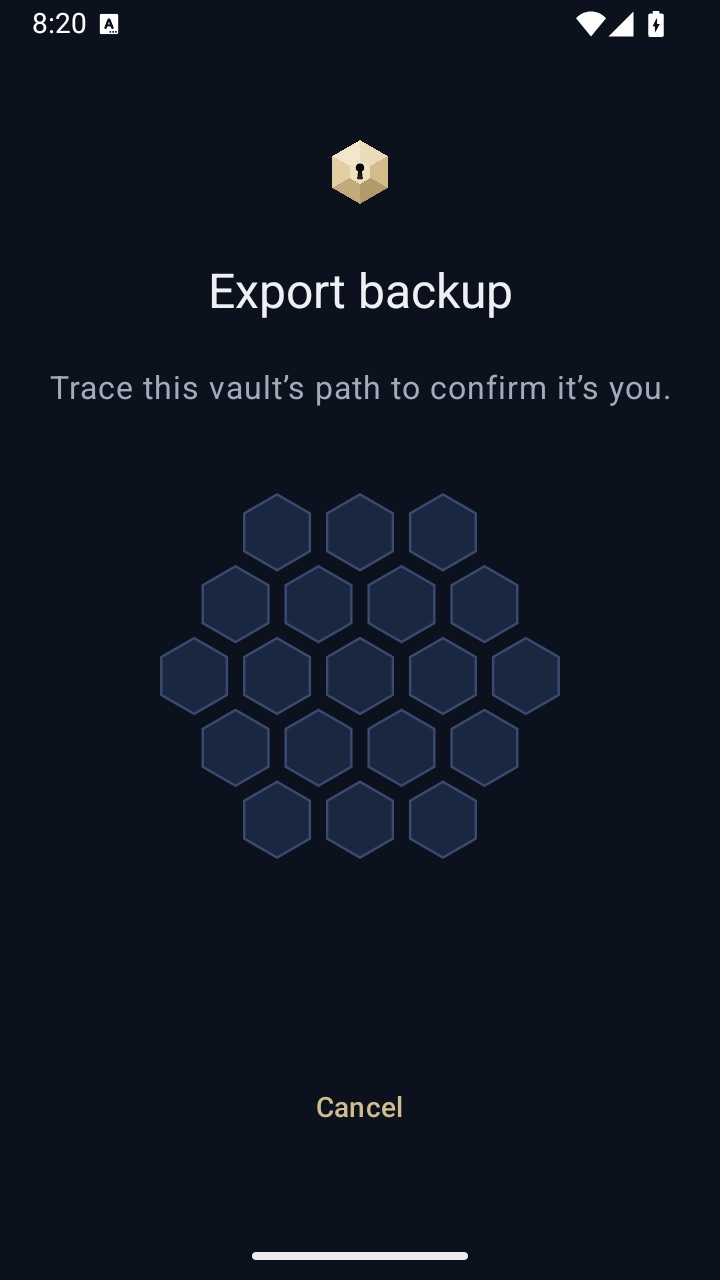
For VaultWell, open each vault and export an encrypted .vwbackup file. Store it somewhere you control, such as a computer or a drive. On a new iPhone or Android phone, you restore by tracing that vault's path. If you use a duress vault, remember that opening it erases the other vaults on that phone, so be deliberate about which path you trace while you are moving things.
On the day: sign out and erase
- Unpair accessories. A watch, earbuds or a car may need to be unpaired from the old phone first. An Apple Watch should be unpaired from the Watch app.
- Remove payment cards from the phone's wallet.
- Sign out of your main account. On iPhone, signing out of your Apple Account turns off Find My and Activation Lock. On Android, removing your Google Account turns off Factory Reset Protection. If you skip this, the buyer may be stuck at a screen asking for your account.
- Erase the phone. iPhone: Settings, General, Transfer or Reset iPhone, Erase All Content and Settings. Android: search Settings for "factory reset"; it is usually under System or General management, and names vary by manufacturer.
- Take out the SIM and any memory card. Keep the card, or erase it separately before passing it on.
- Check the result. The phone should start at the first setup screen, with no request for your account.
After it is gone
- Open your Apple Account or Google Account device list online and remove the old phone if it still appears.
- If you traded in with your carrier, confirm the phone is no longer linked to your plan.
- Once you are sure everything restored, delete spare copies of export files you no longer need.
Common traps
- Erasing on the same afternoon you get the new phone. Keep the old one, untouched and charged, for a few days in case something turns out to be missing.
- Trusting an app's encryption instead of erasing. Even if a vault's data is encrypted, erase anyway. It costs nothing and removes any doubt.
- Giving a passcode to a trade-in service. Once the phone is signed out and erased, there is generally nothing to unlock. If a service asks before you have erased, ask why.
- Forgetting shared things. If you share a photo library or family account with someone, the reset changes none of that. Review sharing separately if that matters to you.
If you forget a vault's path and its recovery phrase, nobody can restore its backup, including us. Test a restore before you erase the old phone.