
What to do before a phone repair
A calm checklist for handing your phone in for repair: back up, use built-in repair modes, and protect private photos without giving away your passcode.
A cracked screen or a tired battery usually means leaving your phone with someone you have never met. Most technicians are careful and professional. Even so, an unlocked phone holds your photos, messages, email and banking, so it is worth spending twenty minutes on it before you walk in.
The short version: back up, use a repair mode if your phone has one, and only hand over a passcode if the job truly needs it.
Start with a backup
Repairs sometimes end with a wiped phone, or a replacement handed back in a box. A current backup turns that from a loss into an inconvenience.
- iPhone: back up to iCloud or to a computer. In Settings, tap your name, then iCloud, then iCloud Backup, and check the date of the last backup.
- Android: use Google backup or your manufacturer's own tool. Search Settings for "backup" and check that it finished recently.
- Apps that keep data only on the phone: some messaging apps and most vault apps do not ride along with a normal phone backup. Use each app's own export.
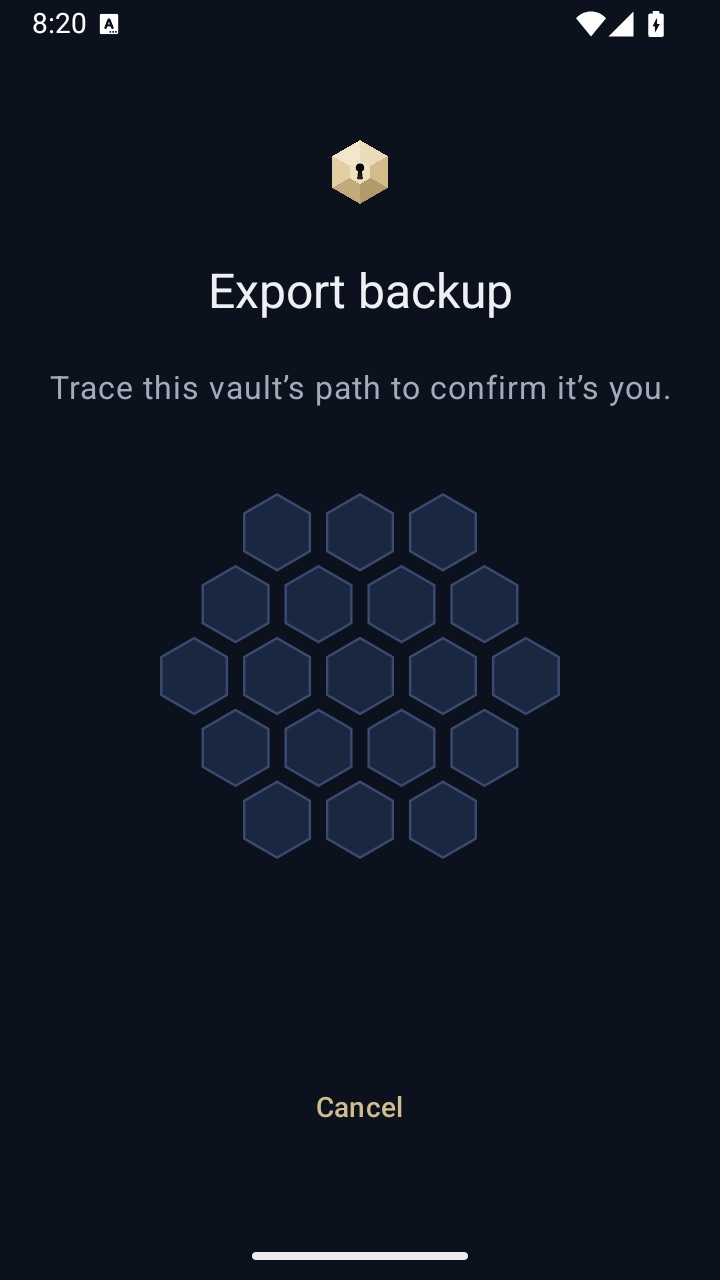
If you use VaultWell, export each vault as an encrypted .vwbackup file and keep it off the phone, for example on a computer. If the phone comes back erased, you restore by tracing the vault's path.
Before you hand it over
- Ask what they need. Screen and battery jobs often need no passcode at all. Some shops want to test cameras, touch and Face ID afterward. Ask before you offer.
- Use a repair mode if you have one. Many Samsung phones offer Maintenance mode, which restarts the phone into a separate profile without your data. It is usually under Settings, then Battery and device care. Some other Android brands have similar modes; search Settings for "repair" or "maintenance".
- On iPhone, consider the official route. Apple and authorized providers can do many repairs without your passcode. If you send the phone away, you may be asked to turn off Find My first. Follow their instructions at the time, since the process changes.
- Tidy what is in plain view. Move private photos somewhere locked, and check Recently Deleted, which can still show them.
- Sign out of high-value apps. Banking, email and work apps are worth signing out of if the technician will know the passcode.
- Take out the SIM and any memory card. They are rarely needed for a repair.
- Get a written job ticket. It should say what is being repaired and when you can collect it.
When they ask for your passcode at the counter
This is the moment most people feel put on the spot. You have more choices than yes or no.
- Ask why. A good shop will tell you what they need to test. If it is only a final check, offer to unlock the phone yourself when you collect it and test it together.
- Offer repair mode instead. If your phone has Maintenance mode or similar, turn it on there and then. The technician can test the hardware without seeing your data.
- Use a temporary passcode. Change your passcode to a simple temporary one before you go, and change it back as soon as you collect the phone. This protects the code you use everywhere else. It does not protect what is on the phone, because a temporary code still unlocks everything.
- Wait while they work. For short jobs, many shops are happy for you to stay.
- Erase first for long jobs. For a major repair, backing up and erasing the phone is the most private option. You restore it afterward.
- Go elsewhere. If a shop insists on keeping your passcode for a minor job and you are not comfortable, it is fine to say no and leave.
Where VaultWell helps
Repair mode and a good backup are free and do most of the work. VaultWell, coming soon for iPhone and Android, covers the gap when someone has your phone unlocked. Each vault opens only with its own traced path, separate from the phone passcode, and the lock screen shows only the comb, with nothing saying how many vaults exist. If someone tries wrong paths, intruder snapshots take a silent front-camera photo that appears the next time you open a vault.
When you get it back
- Change the passcode back if you used a temporary one.
- Look for new apps, unfamiliar accounts, or changed settings.
- Check that photos, messages and any vaults open as normal.
- If the phone was wiped or replaced, restore from your backup and from any app exports.
Anything visible while the phone is unlocked can be seen, and a vault only protects what is inside it. A backup matters more than any lock, because shops can make mistakes too.
Questions
Should I factory reset before a repair?
Only if you have a full, tested backup, including any app exports. For a screen or battery swap it is usually more than you need. For a long repair it is the most private choice.
Is Samsung Maintenance mode safe?
It is designed so the technician cannot see your personal data. You need your own unlock to leave it, and your data returns when you do.