
How to hide and lock photos on Android
Hide and lock photos on Android with Google Photos Locked Folder, Samsung Secure Folder, Private space or your gallery app, and choose the right one.
Android phones vary by maker, so there is no single way to hide a photo. Most phones have at least one free option, and many have two or three. The question that decides which one you want is simple: does the lock need to be different from your screen lock?
The built-in options
Google Photos Locked Folder
Locked Folder keeps photos out of your main grid, search, albums and other apps, behind your screen lock.
- In Google Photos, open Collections and find Locked Folder under Utilities.
- Set it up and confirm with your screen lock.
- Select photos in your library, tap More, and choose Move to Locked Folder.
If the menus look different, type "Locked Folder" into the Google Photos search bar. Check its settings for backup. On some accounts it can be backed up; otherwise items stay on the phone only and are lost if you uninstall Google Photos or reset the phone.
Samsung Secure Folder
On Galaxy phones, Secure Folder is a separate encrypted space that can use its own PIN, pattern or password.
- Open Settings, then Security and privacy, then More security settings, then Secure Folder. Search Settings for "Secure Folder" if the path differs.
- Choose a lock that is different from your screen lock.
- Open Secure Folder, tap Add files, and choose to move, not copy, your photos.
Private space
Recent Android versions offer Private space on some phones, including Pixels. It is a separate area for apps with its own optional lock, and it can be hidden from the app drawer. Install a gallery or files app inside it and keep photos there. Search Settings for "Private space" to see whether your phone has it.
Your gallery app
Many makers add a hide or private option to their own gallery, with names like "Private safe" or "Hidden album". Some only hide from view and add no lock. Look in the gallery's menu, or search Settings for "private" or "hidden".
Which one to use
- If you want a photo out of the grid for a while, such as a gift idea, a gallery hide option or Locked Folder is plenty.
- If you worry about someone grabbing your unlocked phone, any of the locked options help. Locked Folder is the quickest to set up.
- If someone knows your screen lock, Locked Folder will not stop them. Use Secure Folder or Private space with a different lock, or a vault app with its own. Changing your screen lock helps too.
- If other people have fingerprints registered on the phone, turn off fingerprint unlock for the private space, or they may open it.
- If you want a cloud copy, check whether Locked Folder backup is offered on your account. Secure Folder has its own backup option in its settings; read what it covers.
- If you might switch to an iPhone later, none of these move across. Plan how you will export them.
A pattern you trace in public can be watched over a shoulder, and screen smudges can give it away. A longer PIN or password is the stronger choice for any separate lock.
Copies outside the gallery
Locking a photo in one place does nothing for its other copies. After moving photos, check:
- Trash or Recycle bin in each gallery app. Samsung phones often have both Samsung Gallery and Google Photos.
- Google Photos backup, which may already hold the photo in your account.
- Messaging apps, which often save received media to their own folders. Look in each app's settings for an option to stop saving to the gallery. Some apps also have their own chat lock.
- Files or My Files, especially Downloads.
- Drive, OneDrive or email, if you ever sent or uploaded it.
When a separate vault makes sense
If your phone has Secure Folder or Private space, you may not need anything else. A vault app is worth a look when your phone lacks a separate lock, when you want several private spaces that do not reveal each other, or when you want the same vault on Android and iPhone.
VaultWell, coming soon, is built for that case. Each vault opens with its own path traced on a honeycomb, and the lock screen shows nothing about how many vaults exist. Adding photos works from the add sheet.
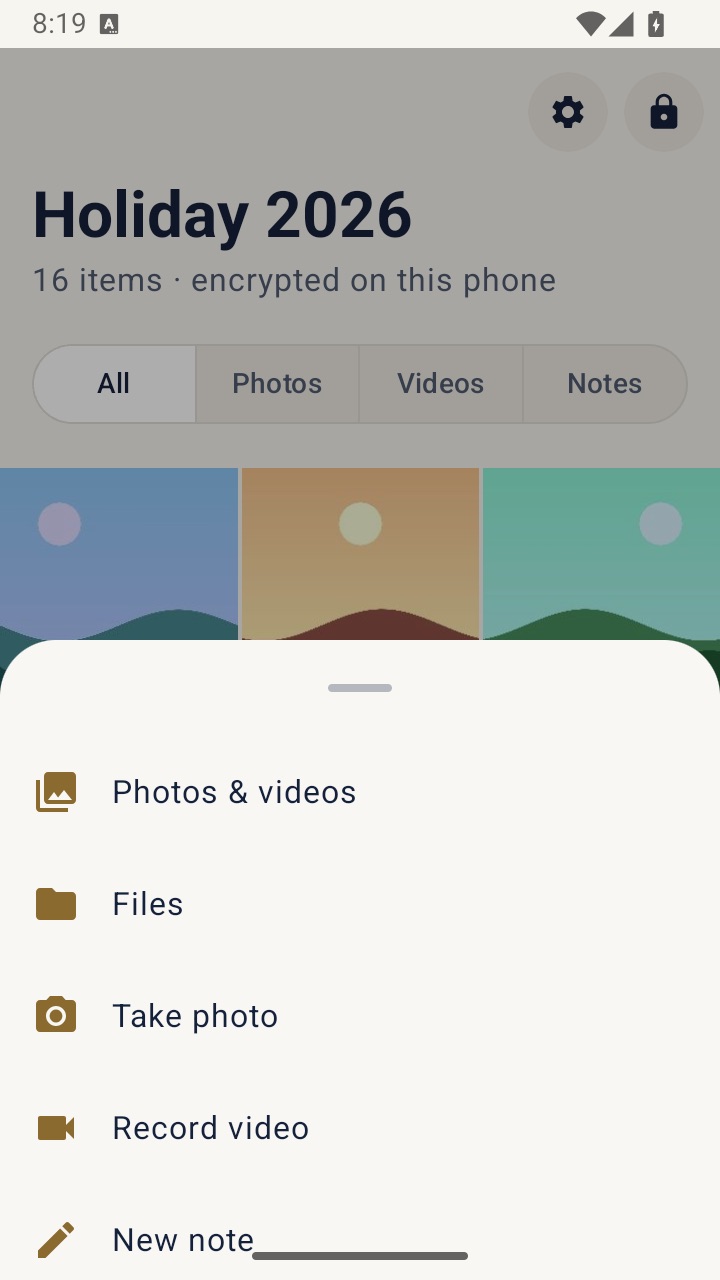
After adding from your gallery, delete the originals there, then empty the trash. Before trusting any vault app, including this one, run through the checklist linked below.
If someone close to you may be checking your phone, a new locked space or a missing photo can be noticed. A local support service can help you plan what is safest for you.